The main purpose of CURA is to enable displays on multiple larger screens such as any TVs, computer monitor or any digital display that has an HDMI port. Automatically, effortlessly without the need to use your devices for casting.
The following videos show you the steps to download , install and register the CURA display app, on Roku TV, Google TV, Android TV , Fire TV, Apple TV and Samsung Smart TV Devices. These may be Streaming Boxes or sticks or with TV that already have one of the platforms installed. Other TVs and monitors can use a $25 streaming stick plugged into a spare HDMI port. Here is a fully list of compatible displays /devices
On mobile devices (iPhone, Android) or tablets (iPad, Android and Fire Tablets) you can use the CURA Display app to upload and sync your images/videos and to control all your Cura displays. It can also be effectively as a more ordered handheld display to share prepared ordered collections in ad hoc situations. (Such as showing your vacation photos when visiting friends).
TV’s or HDMI Displays
Google TV /Android TV
Built in TV’s or Google/Android TV Sticks/Boxs on Amazon from $30
Amazon Fire TV
Built in Fire TV or Fire TV Sticks on Amazon from $25
Apple TV
Apple Tv Boxs on Amazon from $130
Roku TV
Roku TV Sticks on Amazon from $18
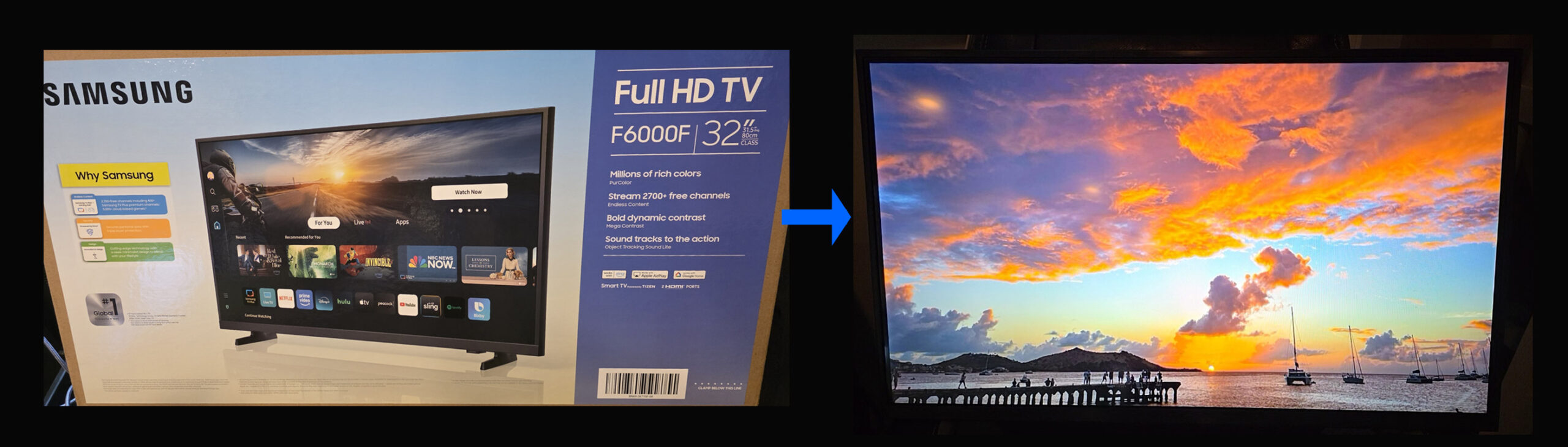
▶ Setup video coming soon
Samsung Smart TV
The Cura Display app runs right on Samsung smart TVs, with no streaming stick needed.
- On your Samsung TV, open Apps and search for Cura Display.
- Install it and open it.
- Scan the code on the screen with your phone, or enter it at curapp.io/device, and sign in to your CURA account or create one.
- Your TV appears as a display in your account. Give it a collection or a room, such as your Cura AI picks.
Don’t see Cura Display? Make sure your TV’s software is up to date, or contact support.
Mobile Displays, Digital Photo Frames
Android Tablets
10 in with stand or 7.5 in on Amazon from at $49
Apple iPads (Gen 3 and later)
Gen3 and above on Amazon from $110
Get “Cura Display” app.from