
Samsung TV Beta Installation Guide
CURA Display — Create your Visual Ambience™
Thank you for joining the CURA Display beta! This guide will walk you through installing the beta version of CURA Display on your Samsung Smart TV. The process takes about 5 minutes.
🔑 Your Activation Code
Enter this code on your Samsung TV
📺 Step 1: Find the App Settings on Your TV
The location of App Settings varies by model. Try one of these methods:
- Press HOME on your remote to go to the Home Screen
- Navigate to the Apps section (app icon row)
- Scroll all the way down to the very bottom of the Apps screen
- You’ll see an App Settings (or gear/cog icon) option — open it
- You’re now in the Application Settings where you can enter the activation code
- Press HOME on your remote
- Navigate to the Applications menu
- Press the ▲ UP arrow key to move to the top right corner
- Press ◀ LEFT three times
- Press OK — this opens the Application Settings
🔐 Step 2: Enter the Hidden Key Sequence
Once you’re on the Application Settings screen, use your remote to enter this key sequence:
When entered correctly, an activation code input window will appear on screen:
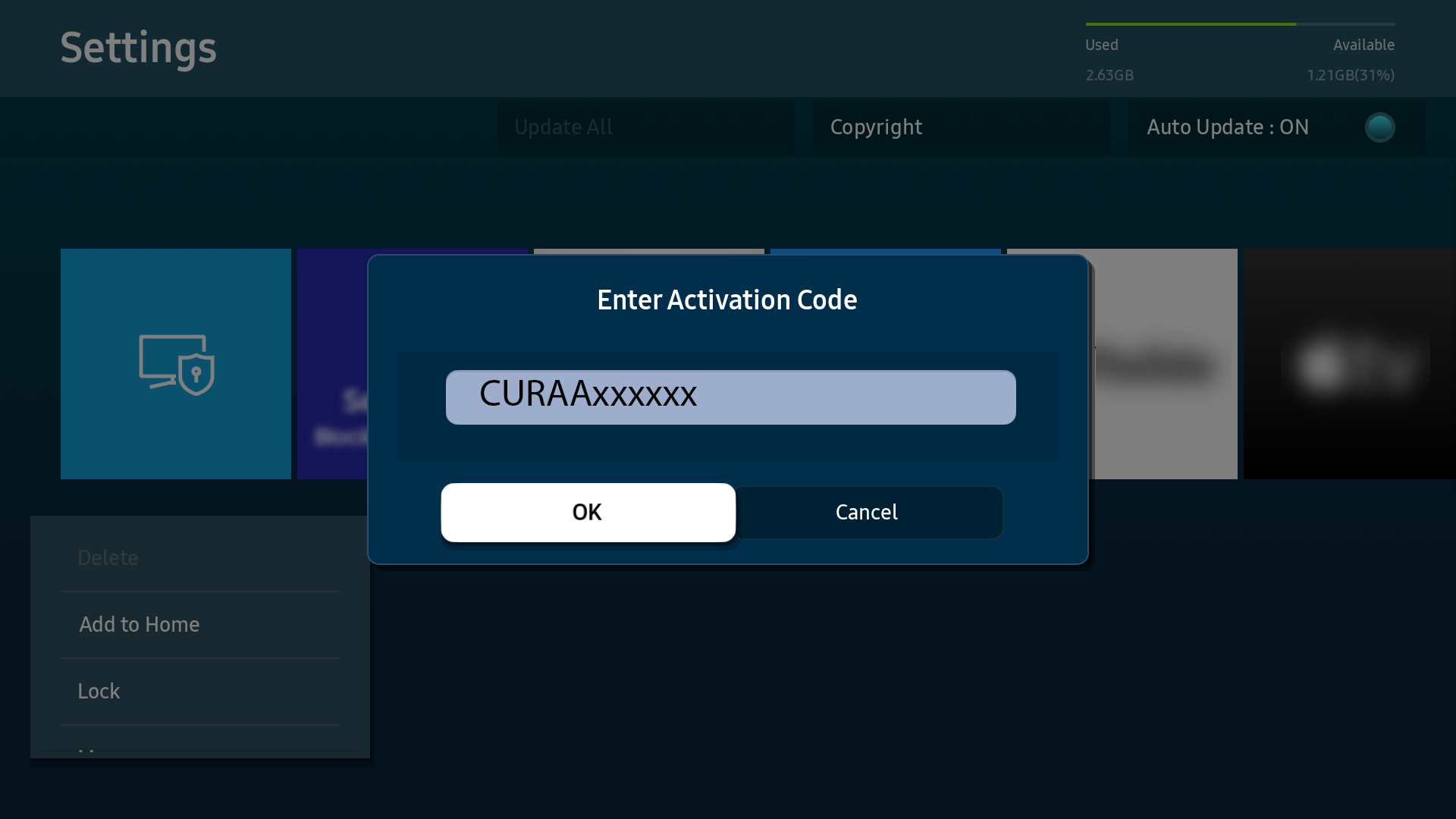
📝 Step 3: Enter Your Activation Code
-
1
Type your activation code (shown above) into the input window using the on-screen keyboard or your remote’s number keys. -
2
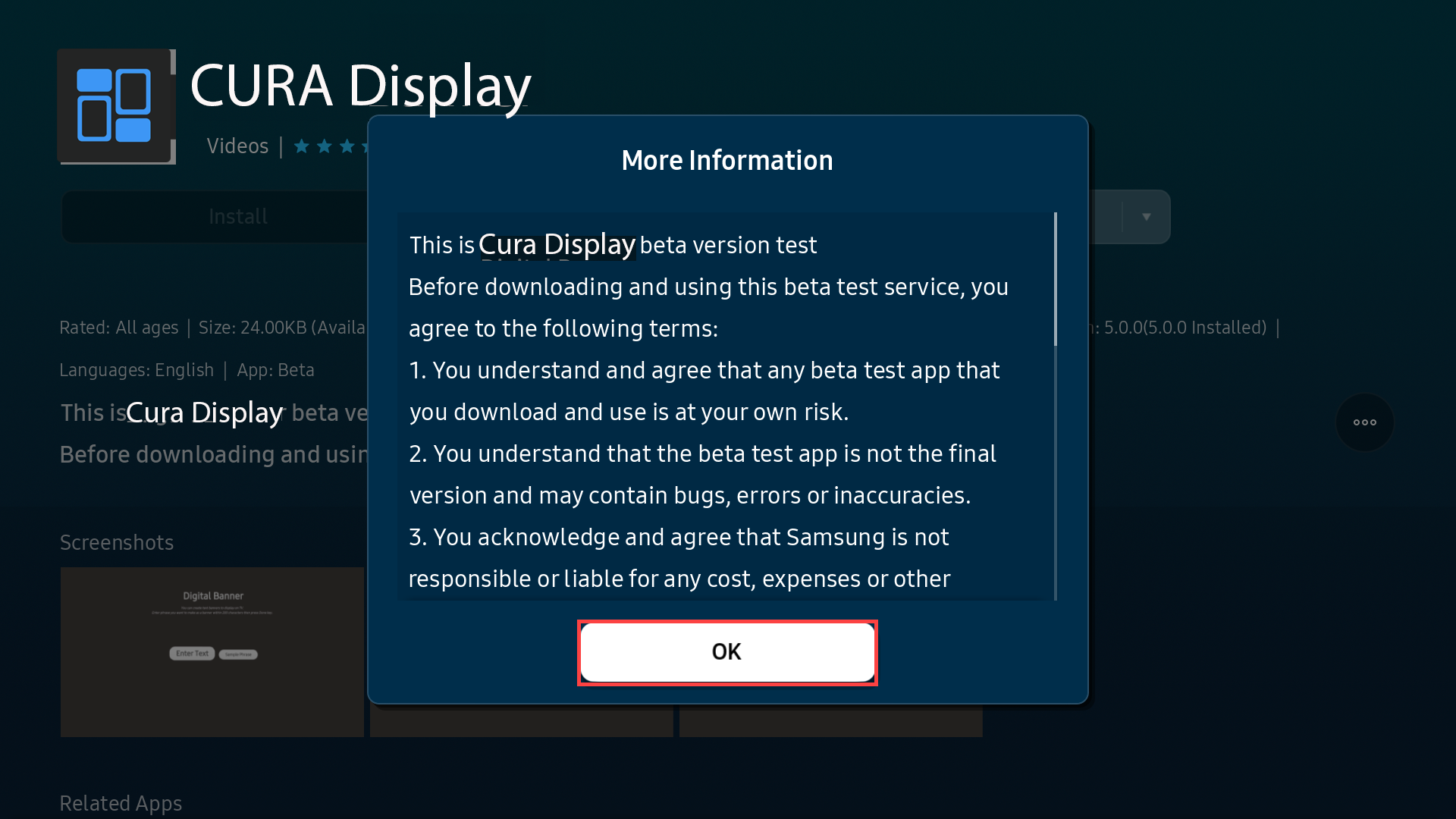
Review the precautions — the CURA Display beta page will appear, but the Install button is disabled. You must first click the “more” (…) button in the bottom right to read and accept the terms.

-
3
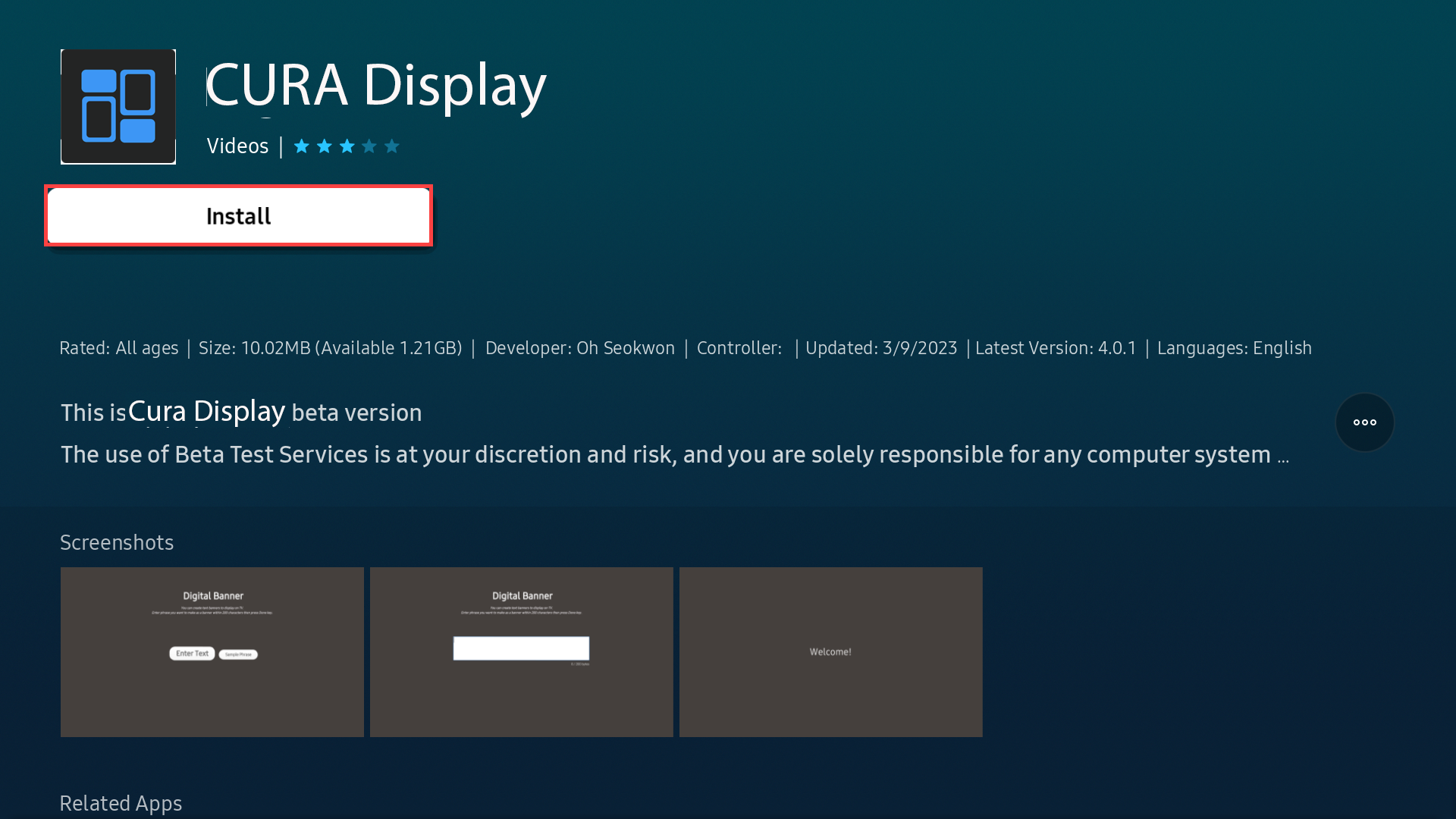
Agree and Install — after accepting the terms, the Install button becomes active. Press it to download and install CURA Display on your TV.
-
4
Open the app — once installed, you can open CURA Display immediately and start the pairing process.
💬 Feedback & Issues
Your feedback is what makes this beta valuable. We want to hear about everything — bugs, confusing screens, missing features, things that delighted you, or things that frustrated you.
-
✉
Email us directly: beta@curatortec.com — we read every message and respond personally. -
📝
Use our feedback form: curatortec.com/beta-feedback — quick structured form for reporting issues or suggestions. -
📸
Screenshots help! If you see something odd on your TV, take a photo with your phone and include it in your email. It saves us both time.
🗑 Leaving the Beta
You can leave the beta and remove the app at any time:
-
1
Go to your Downloaded Apps list on the Home Screen -
2
Find the CURA Display icon and press and hold for at least 1 second -
3
Select “Leave” from the menu that appears
If a public version of CURA Display is available, it will be reinstalled automatically when you leave the beta.
⚠ Troubleshooting
-
?
134678 doesn’t work? Make sure you’re on the Application Settings screen (not TV Settings). Enter the numbers smoothly without long pauses. Try 2–3 times. -
?
Activation code rejected? Check that your TV firmware is up to date. Go to TV Settings → Support → Software Update. Then try again. -
?
App won’t install? Make sure you have enough storage space on your TV. You can check in TV Settings → General → System Manager → Storage. -
?
Still stuck? Email us at beta@curatortec.com with your TV model and year, and we’ll help you get set up.