
Memories on Display® · CURA for iPhone and iPad
Cura AI finds your best photos

NEW · CURA AI ON IPHONE AND IPAD
Thousands of phone photos. Your best, on your TV.
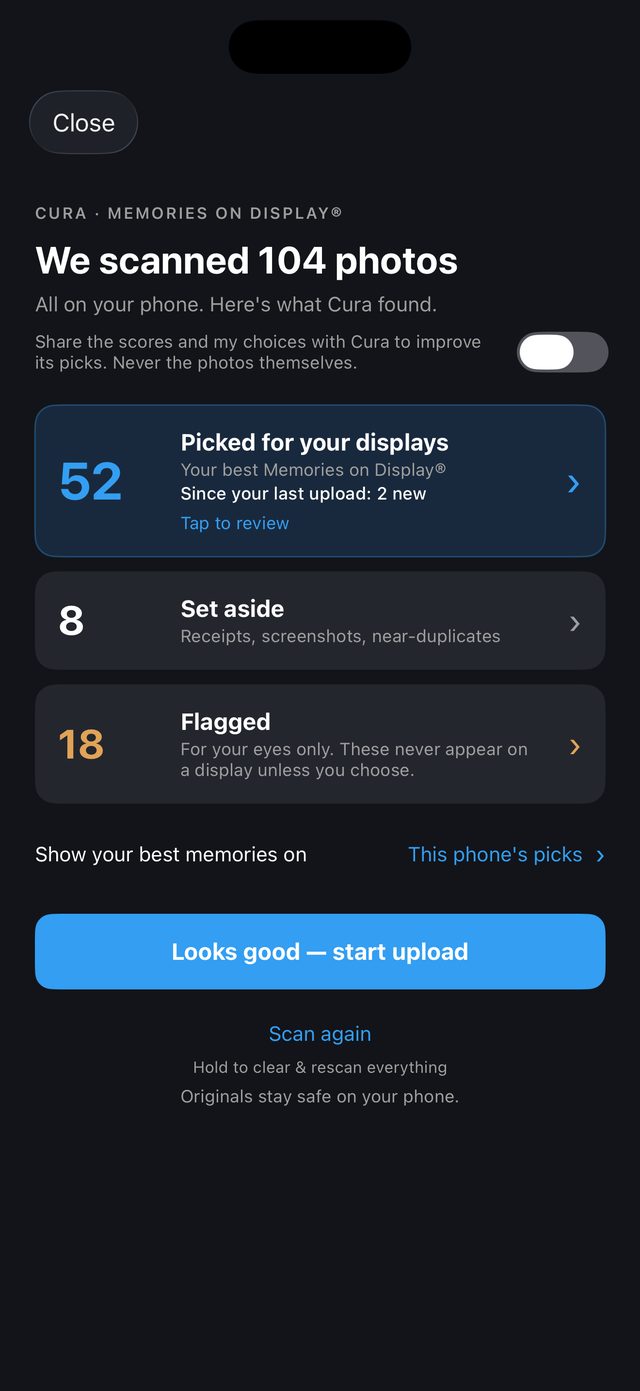
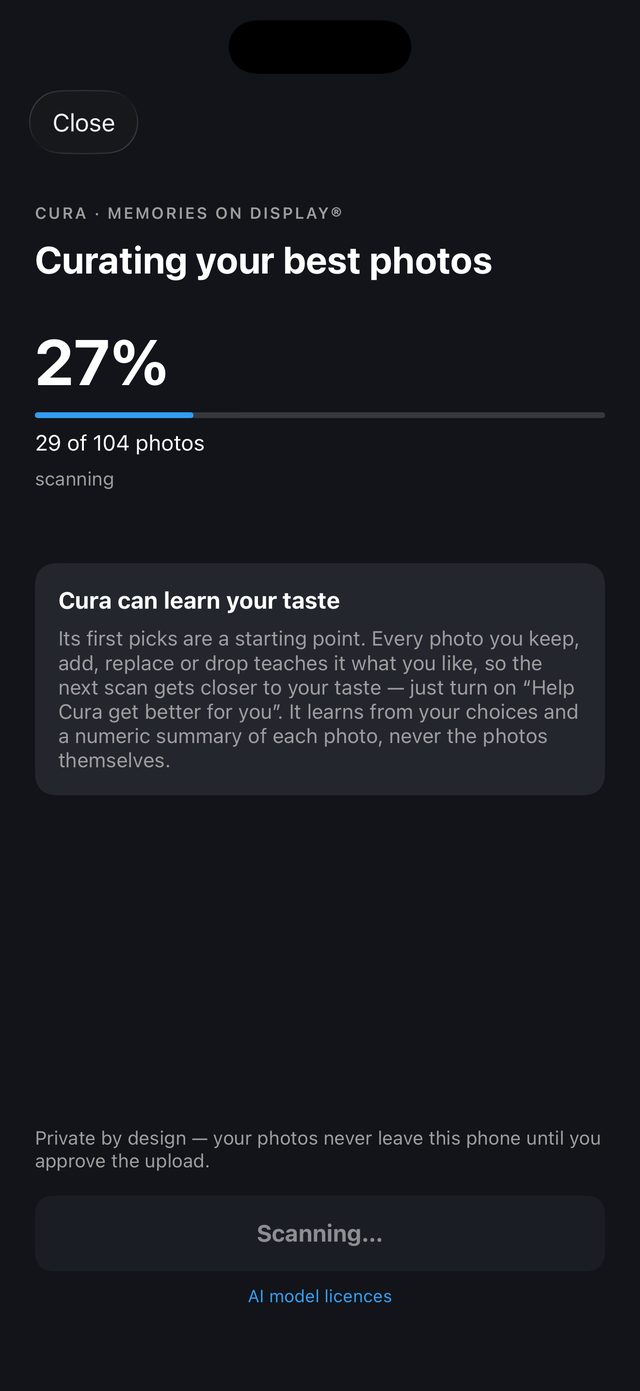
Whether you have 1,000 photos or 10,000, Cura AI looks through the whole photo library on your iPhone or iPad, including photos kept in iCloud, and picks and curates around 500 of your best moments: the people, places and occasions worth seeing every day. It runs on your phone, you can review any pick, and CURA shows them on your TV, tablet and frames.
10,000 photos in → about 500 of your best out. The rest stay on your phone, untouched.
- Private by design: the scan happens on your phone. Nothing uploads while it works, and your originals stay on your phone.
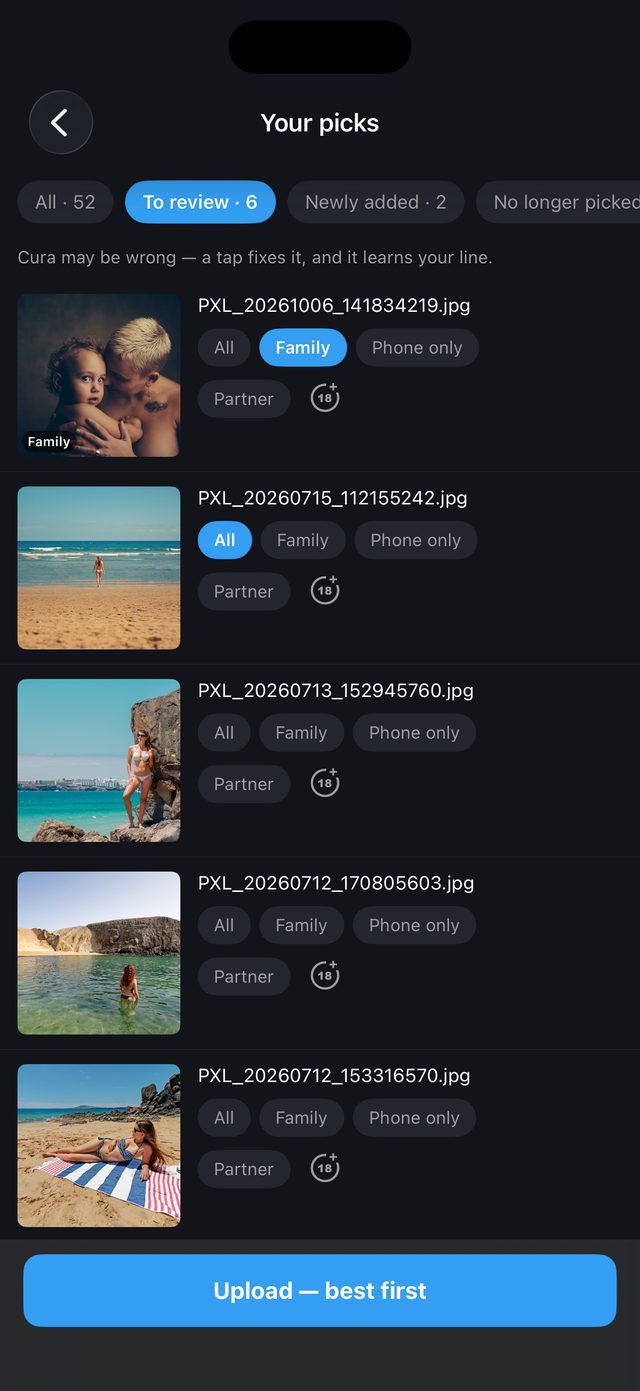
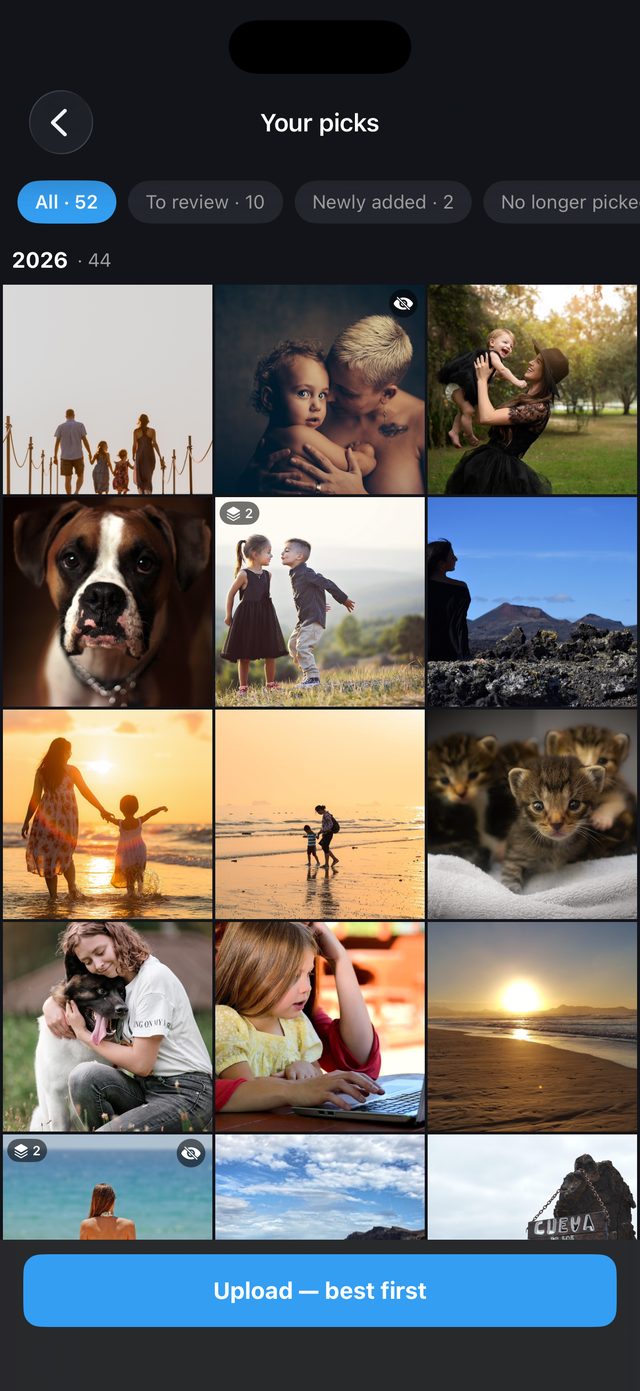
- You decide: review any pick. Remove a photo, swap in a better shot of the same moment, or add one it set aside.
- No clutter: duplicates, screenshots, receipts and messaging-app images are set aside automatically.
HOW IT WORKS
Four steps, all from your phone
- Scan, on your phone. Tap Sync Albums & CURA AI and choose Cura AI. The first scan reads your library once (about 50 minutes for 10,000 photos). Keep CURA open, and anything left finishes overnight while your phone charges; after that, new scans take seconds.
- Review your picks. See what Cura AI chose and what’s new since your last upload. Keep, remove or add.
- Choose who sees what. Set a photo for everyone, family, a partner, or keep it on your phone only. Sensitive photos are flagged for you to decide.
- Show them everywhere. Tap Show your best memories on, tick your displays, then Looks good — start upload. Your best photos go up first, so your displays improve from minute one.
YOUR PICKS, ON YOUR SCREENS
Pick the TVs, and they take it from there
Your picks become their own collection, named after your phone, and play on the displays you tick.
- Fresh, not frozen: run Cura AI again any time. In seconds it re-checks your library, adds your newest best moments and retires older picks, and your screens follow.
- Each screen shows what suits it: a display for everyone shows photos set for All, a Family display adds Family photos, and Partner photos appear only where you allow them.
- Learns your preferences: turn on “Share the scores and my choices” and every keep, swap or removal teaches Cura AI what you like. Never the photos themselves.
- You choose what’s next: tap Want this on the ways to curate you’d use (your past year, landscapes & sunsets, family & friends, pets, a trip) and rate each scan.
THE WHOLE FAMILY
The best of the best, from every phone
Your partner’s phone, your kids’ iPads, your parents’ Android phone: install CURA on each one and sign in to the same account. Your plan includes 4 phones.
- Each phone runs Cura AI on its own library, privately. Android phones run Cura AI too.
- Show them together: tick the same TV on each phone, and the whole family’s best moments share one screen.
- Best-Of collections such as Latest & Best and Best of my Favorites then curate the best of the best from everything the family has added, refreshed every week.
Prefer to choose albums yourself?
In Sync Albums & CURA AI, pick Select albums myself. CURA keeps a collection matched to each album: add photos and they appear on your displays, remove them and they leave. It works with iCloud albums and iCloud Shared Albums, the easiest way to bring the whole family together: when Grandma adds a photo to a shared album, it appears on the living-room TV. Open the app to sync after you change an album. Or tap Upload Photos to send individual photos and videos.
Use an iPad as a frame
Tap Start This CURA Display to play your collections, and turn on Auto Start so the slideshow begins by itself when CURA is open and idle. Put it on a stand, keep it plugged in, and use Guided Access (Settings › Accessibility) to keep it on CURA.
ON EVERY SCREEN
On the TV you already own
- Google TV (and older Android TVs), including TVs from Sony, TCL, Hisense and Philips, and Chromecast with Google TV
- Amazon Fire TV TVs and sticks
- Roku TVs and players
- Samsung smart TVs, with the Cura Display app
- Apple TV, with CURA’s native Apple TV app
- Tablets and frames: iPads, Android and Fire tablets
How to set up each kind of display →
Manage it all from the app, or from any browser at curapp.io. Getting started is free, with 4 phones and 1 display included. See plans.
